
Managing software licenses is an essential part of operating a Windows-based virtual private server. For organizations using Remote Desktop Services (RDS), understanding Client Access Licenses (CALs) is particularly important because licensing requirements can affect compliance, costs, and the ability of users to connect to remote systems. The term windows vps rds cal commonly appears when businesses search for information about licensing Windows VPS environments that support multiple remote users.
A Windows VPS can provide a flexible environment for hosting applications, managing business workloads, running development systems, or supporting remote employees. However, simply renting a Windows VPS does not automatically mean that every remote-access licensing requirement has been satisfied. Administrators should understand how RDS licensing works and determine which licenses are appropriate for their specific environment.
Understanding Windows VPS and RDS CAL Licensing
A Windows VPS is a virtual server running a Windows operating system within a virtualized infrastructure. Users can access the server remotely to perform administrative tasks or use applications. When remote access goes beyond ordinary server administration and involves Remote Desktop Services functionality, additional licensing considerations may apply.
RDS CALs are licenses that authorize users or devices to access Remote Desktop Services. Microsoft generally provides two primary licensing models: Per User and Per Device. The appropriate model depends on how an organization operates and how many people or devices need access.
For example, a business with employees who access a VPS from multiple computers may find a user-based model more practical. Conversely, an environment where several employees share a limited number of dedicated workstations may benefit from device-based licensing.
Determine What Type of Access You Need
Before purchasing or configuring licenses, identify exactly how the Windows VPS will be used. Not every remote connection has identical licensing requirements.
An administrator might connect to a server occasionally to maintain the operating system, install updates, or troubleshoot a configuration. A business could also use RDS to provide employees with regular access to applications and desktop sessions.
These scenarios should not automatically be treated as the same. Administrators should review Microsoft’s current licensing documentation and the terms associated with their Windows Server edition, hosting arrangement, and RDS deployment.
Creating an inventory of intended users, devices, applications, and connection methods can make this process easier. It also helps prevent unnecessary licensing purchases or accidental under-licensing.
Choose Between Per User and Per Device CALs
One of the most important decisions in RDS licensing is selecting the appropriate CAL model.
A Per User CAL is associated with an individual user. It can be useful when one employee needs to connect from several devices, such as a desktop computer, laptop, or other authorized workstation.
A Per Device CAL is associated with a specific device. This approach can be useful when multiple employees use the same computers to access an RDS environment.
The better choice depends on the organization’s working patterns rather than simply the number displayed on a server dashboard. Businesses should evaluate employee mobility, shared workstations, remote working arrangements, and expected changes in staff or devices.
Check the Licensing Configuration
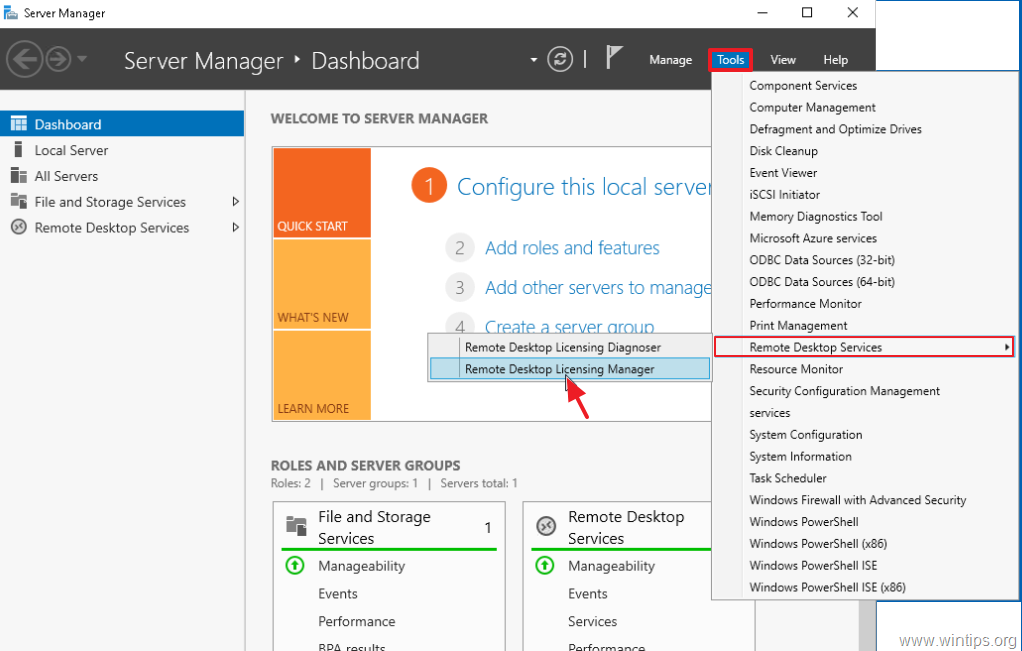
Once the appropriate licensing approach has been determined, administrators should verify the RDS licensing configuration. Windows Server provides tools that can help administrators manage and monitor Remote Desktop Services licensing.
The Remote Desktop Licensing role can be installed when required, and the licensing mode should correspond with the CAL model being used. Administrators should also verify that the relevant license server is properly configured and that the deployment can communicate with it.
Configuration should not be based solely on assumptions made by a VPS provider or an online guide. Hosting providers may offer different licensing arrangements, and the customer remains responsible for understanding what is included in the service agreement.
Understand Your VPS Provider’s Licensing Terms
A major consideration when using a Windows VPS is determining who supplies the underlying Windows and RDS licenses. Some providers incorporate certain licensing costs into their hosting plans, while others require customers to obtain specific licenses separately.
Before purchasing a server, read the provider’s licensing terms carefully. Look for information about Windows Server licensing, remote desktop access, RDS CALs, license mobility where applicable, and any restrictions on commercial use.
If the provider’s documentation is unclear, ask for written clarification. Knowing exactly what is included can prevent unexpected expenses and compliance problems later.
Keep Accurate License Records
Good license management depends on accurate records. Maintain documentation showing the number and type of licenses purchased, purchase dates, applicable agreements, assigned users or devices, and relevant server configurations.
These records become particularly useful when an organization grows or changes its infrastructure. They can also simplify internal audits and make it easier to identify whether additional licenses are necessary.
A simple licensing spreadsheet or asset-management system can track users, devices, server names, licensing modes, and renewal information. Larger organizations may benefit from dedicated software asset-management tools.
Monitor Changes in Your Environment
Licensing requirements should be reviewed whenever the VPS environment changes significantly. Adding employees, introducing shared workstations, deploying additional servers, or changing remote-access methods can affect licensing requirements.
For example, an organization might begin with five remote users and later expand to twenty. A licensing strategy that was appropriate at the beginning may require adjustment as the company grows.
Regular reviews help administrators avoid situations where infrastructure expands faster than licensing records. A quarterly or annual review can be useful, depending on the size and complexity of the environment.
Avoid Common RDS CAL Management Mistakes
Several mistakes can make Windows VPS licensing more difficult than necessary. One common problem is assuming that an RDS CAL is automatically included simply because a VPS subscription includes Windows Server.
Another mistake is selecting Per User or Per Device licensing without considering how employees actually connect. Organizations may also fail to document license purchases or forget to update records after staff changes.
Using unofficial activation tools, unauthorized license keys, or questionable licensing sources creates additional risks. These approaches can introduce security problems and may leave an organization unable to demonstrate legitimate licensing.
Protect the VPS While Managing Remote Access
Licensing is only one part of responsible VPS administration. Remote desktop access should also be secured carefully.
Administrators should use strong authentication, apply security updates promptly, restrict unnecessary network exposure, and monitor login activity. Where supported, multi-factor authentication and network-level security controls can provide additional protection.
Remote access should be limited to people who genuinely require it. Removing inactive accounts and reviewing permissions regularly can reduce unnecessary exposure.
Plan for Growth and Compliance
Effective windows vps rds cal management is ultimately about combining technical administration with responsible license planning. Organizations should understand their access requirements, verify the licensing terms supplied by their VPS provider, select an appropriate CAL model, maintain accurate records, and review the environment as it changes.
Because Microsoft licensing rules can be detailed and may change over time, businesses should consult current Microsoft licensing documentation or a qualified licensing professional when their situation is complex. This is especially important for larger deployments, hosted environments, or organizations operating under specific volume licensing agreements.
A well-managed Windows VPS environment does not rely on guesswork. By treating licensing as an ongoing administrative responsibility rather than a one-time purchase, organizations can build a more predictable, secure, and compliant remote-access environment while avoiding unnecessary licensing costs and operational surprises.