
Losing important files from a flash drive can be stressful, especially when those files include work documents, personal photos, videos, or other valuable information. Fortunately, deleting a file does not always mean it has been permanently destroyed. In many situations, the data remains on the storage device until new information overwrites the same space.
If you want to recover deleted files from flash drive storage, the most important thing is to act carefully. The wrong steps can overwrite recoverable data and make restoration much more difficult. This guide explains practical methods for recovering deleted files while reducing the risk of additional data loss.
Stop Using the Flash Drive Immediately
The first and most important step is to stop writing new data to the flash drive. When a file is deleted, the operating system may mark the space occupied by that file as available for future use. The original information can remain there until another file is written over it.
Avoid copying new documents, installing applications, downloading files, or creating folders on the affected drive. Even seemingly harmless actions can use storage space that previously contained your deleted files.
If the flash drive is still connected to your computer, safely eject it when possible. Keeping unnecessary applications or automated backup processes from accessing the drive can further reduce the chance of overwriting deleted information.
Check the Recycle Bin First
Depending on how the file was deleted, it may be possible to restore it without using specialized recovery software. However, files deleted from removable drives often bypass the Windows Recycle Bin and are removed directly.
Still, checking the Recycle Bin is quick and harmless. Open it and look for the missing file. If you find it, right-click the item and choose the restore option. The file should return to its previous location if the operating system retained it there.
This simple check can save time before moving on to more advanced recovery techniques.
Check Whether the Files Are Hidden
Sometimes files appear to be deleted when they are actually hidden because of file-system problems, malware, or accidental changes to folder settings.
Connect the flash drive without modifying its contents. Open File Explorer and check the drive carefully. In Windows, you can enable hidden items through the View options. If the missing files become visible, copy them to a different storage device immediately.
If the flash drive displays unusual shortcuts instead of your normal folders, avoid opening suspicious files. This can sometimes indicate malware or altered file attributes.
Use Data Recovery Software
When ordinary restoration methods do not work, data recovery software can scan the flash drive for information that is no longer visible through the normal file system.
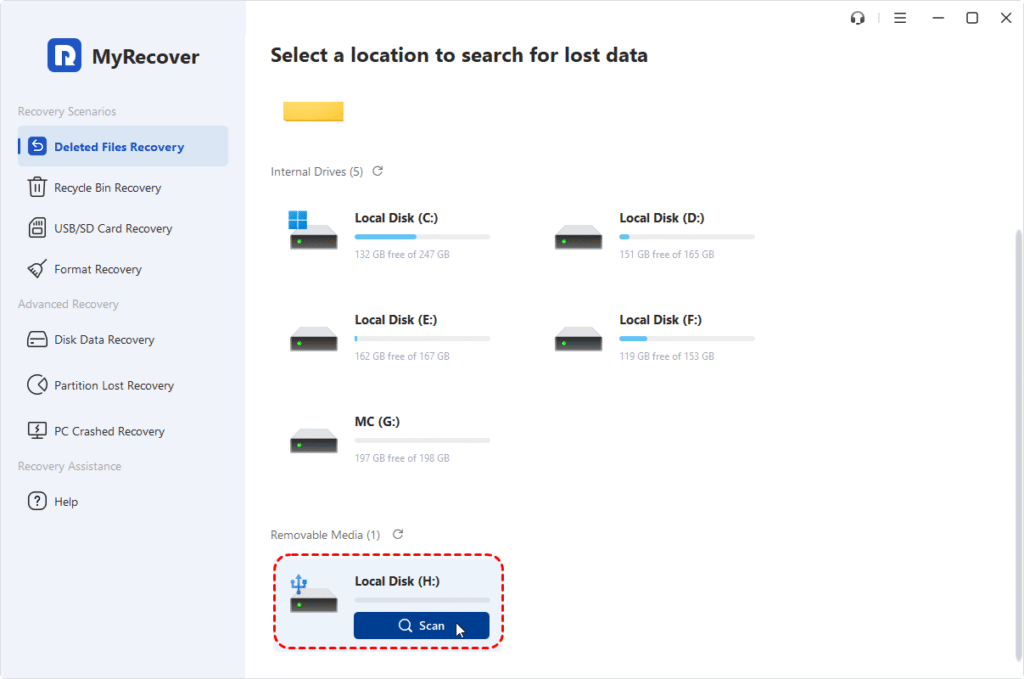
Choose a reputable recovery application and, importantly, install the software on your computer’s internal drive rather than the flash drive containing the deleted data. Installing recovery software directly onto the affected drive could overwrite information you are trying to recover.
Connect the flash drive and allow the recovery application to scan it. Depending on the software and the condition of the drive, you may be able to perform a quick scan first and then use a deeper scan if necessary.
Select the Correct Drive
Data recovery programs usually display a list of available storage devices. Carefully identify the flash drive by checking its capacity and drive information.
Selecting the wrong device can create confusion and potentially lead to unwanted changes. Before beginning a recovery operation, make sure the selected drive is the one from which the files disappeared.
If the software offers a read-only scanning option, use it. The goal is to examine the storage without making unnecessary changes.
Preview Recoverable Files
A useful recovery program may allow you to preview files before restoring them. Use this feature to identify the documents, photographs, videos, or other information you actually need.
File names and folder structures may sometimes be damaged or unavailable. In such situations, previewing files can help determine whether their contents are still intact.
Do not assume that every result is recoverable simply because it appears in the scan. Some files may be partially corrupted, while others may have already been overwritten.
Save Recovered Data Somewhere Else
This is one of the most important rules when attempting to recover deleted files from flash drive storage: never save recovered files back to the same flash drive.
For example, if your deleted files are located on a 64 GB USB drive, restore them to your computer’s internal storage or another external drive with sufficient free space.
Saving recovered information onto the original flash drive can overwrite other deleted data. If you need many files, make sure the destination drive has enough available storage before starting the recovery process.
Try Previous Backups
Recovery software is not the only possible solution. Check whether the missing information exists somewhere else.
You may have copies stored in cloud storage, an external backup drive, email attachments, messaging applications, or another computer. Windows backup tools or third-party backup systems may also contain previous versions of important files.
A backup is generally safer to restore than attempting increasingly aggressive recovery operations on a damaged storage device.
What If the Flash Drive Is Not Recognized?
A more serious situation occurs when the computer does not recognize the flash drive at all. Before assuming the files are gone, try another USB port and, if available, another computer.
Avoid repeatedly plugging and unplugging a physically damaged drive if it becomes unusually hot, makes abnormal sounds, or disconnects repeatedly. Although flash drives have no traditional spinning hard-disk mechanism, electronic or memory-controller failures can still occur.
If the information is extremely important and the drive has physical or severe logical damage, consider professional data recovery services rather than repeatedly attempting recovery yourself.
Avoid Common Recovery Mistakes
Several actions can reduce your chances of successful recovery. Do not format the flash drive simply because Windows recommends formatting it. If the computer displays a message saying that the drive needs to be formatted before use, cancel the operation if the data is important.
Also avoid running unnecessary repair utilities before securing a copy or image of the affected storage when possible. Repair operations can modify the file system and potentially complicate recovery.
Do not download large files onto the flash drive, move existing folders around, or use it as normal storage while trying to restore deleted information.
How to Prevent Future Flash Drive Data Loss
Once your files have been recovered, consider improving your backup routine. Important documents and personal media should not exist in only one location.
Keep at least one additional copy of valuable files on another storage device or a reliable cloud service. Safely eject USB drives when possible, protect them from physical damage, and scan suspicious files for malware.
For particularly important information, maintaining multiple backups provides much greater protection than relying entirely on file recovery software.
Final Thoughts
Learning how to recover deleted files from flash drive storage is primarily about minimizing further damage. Stop using the device, avoid formatting it, check simple restoration options, and use appropriate recovery software when necessary. Most importantly, save recovered files to a different storage location.
The possibility of successful recovery depends on what happened to the files, whether new data has overwritten them, and the condition of the flash drive. Acting quickly and carefully gives your deleted information the best opportunity to be restored without causing additional data loss.